Memento user guide
For Memento 1.4.0 on Windows. This guide is also available in French (Français): open user-guide.html in the fr folder, which sits next to this page's en folder (among the release files it is user-guide.fr.html), or the Start menu entry Memento User Guide if Setup ran in French.
Memento in one minute
Memento is a private voice journal for your Windows PC. You sit at your desk and speak. Your words appear on screen as you say them. When you are done, Memento tidies the text lightly, suggests a few tags, and saves it as a dated entry in a folder you choose.
- Your words stay yours. Memento removes "um"s and fixes small grammar slips in an English journal. It never rewrites what you said.
- It is private. After a one-time download, Memento works without the internet. Your journal never leaves your PC through Memento, and your voice is never stored.
- Your journal is plain text. Every entry is an ordinary file you can open in any text editor, today or in thirty years, with or without Memento.
To start, you need a Windows PC with a recent NVIDIA graphics card, a microphone, and about 5 GB of downloading to do once. Memento understands English and French: see Choose your languages.
This version is a free preview. It records until 31 December 2026. After that, your journal stays readable in Memento and in any text editor: see Know until when Memento records.
Short version: run the setup, let Memento download what it needs, choose a folder, press Start, speak, press Stop, press Finish entry, press Save. Later, open Journal to reread your entries, and filter them by tag to find one again. In Settings, you can make Memento light or dark, make your text bigger and change its language.
The rest of this guide covers each step in detail. You can open it at any time from the Start menu: Memento User Guide.
Check that your PC can run Memento
You need:
- Windows 10 or 11, 64-bit.
- An NVIDIA graphics card, RTX 20 series or newer, with 6 GB of graphics memory or more.
- An NVIDIA driver, version 580 or newer. You can get it from nvidia.com/drivers.
- A little over 7 GB of free disk space: about 1.1 GB for the program, 5.1 GB for the download, and 1 GB that Memento keeps spare while downloading.
- A microphone.
- An internet connection for the first start only.
- 16 GB of memory should be enough, but Memento has only been measured on PCs with 32 GB.
To see your graphics card, press Ctrl+Shift+Esc to open Task Manager, click Performance, then GPU. The card's name is at the top right, and its memory is under "Dedicated GPU memory".
If your PC falls short, Memento still opens. It tells you what is missing and what is needed, and turns recording off. It downloads nothing. The journal view keeps working. On a PC with no NVIDIA card, for example, it says: "Memento needs an NVIDIA graphics card (RTX 20 series or newer, 6 GB or more). This PC doesn't have one, so recording isn't possible."
Look after your journal
Your journal holds your memories, so it is worth a little care. Memento makes no backup of it. Copy your journal folder to another disk or a USB key from time to time.
Never keep your journal, or any other file of yours, in the Memento program folder. An update or an uninstall can remove what is there.
Know until when Memento records
Memento 1.4.0 is a free preview. It records until 31 December 2026. After that, it becomes a reading version: you can no longer record, but nothing of yours is lost or locked.
- Any time: Settings shows the date under About Memento: "Preview: recording until 31 December 2026".
- In the last two weeks, from 18 December: a short line above Start says "This preview records until 31 December 2026. The next version will be on jjshed.com." It blocks nothing, and it hides while you record.
- From 1 January 2027 (by your PC's date): Start is off and Ctrl+R does nothing. In its place, the main screen says "This preview of Memento recorded until 31 December 2026. Your journal stays readable here and in any text editor. The next version is on jjshed.com." Click jjshed.com to open the site in your browser. Settings then reads "Preview: recording ended on 31 December 2026".
A recording that is running at midnight on 31 December carries on until you stop it. A sitting that is already open can still be finished, reviewed and saved, even one offered back after a crash. Everything else keeps working as before: rereading your journal, the tag filter, Settings and your files.
If Memento has not downloaded its models by then, it downloads nothing more. You can still choose your journal folder and read your entries.
Install Memento
You don't need administrator rights. Memento installs for your Windows account only. This preview records until 31 December 2026; after that date Memento stays a reading version, and you can still open and read every entry.
- Double-click
Memento-Setup-1.4.0.exe. The file is about 610 MB. Setup speaks your Windows display language, English or French, and asks no language question. - Windows may show a blue window, Windows protected your PC. This appears because the setup has no paid publisher signature. Click More info, then Run anyway.
- Setup shows the License Agreement, a short text in your language. It says, among other things, that Memento is a free preview provided as is, that recording stops after the end date, and that your journal belongs to you. Choose I accept the agreement and click Next. If you don't accept, setup stops and nothing is installed.
- Follow the setup. You can keep the suggested folder. If you choose another one, it must be new or empty: setup refuses a folder that already holds files, so that updates never touch your own files. The desktop shortcut is ticked; untick it if you only want Memento in the Start menu.
- On the last page, leave Launch Memento ticked and click Finish.
If your antivirus raises an alarm
Antivirus programs sometimes wrongly flag programs like Memento, because it is unsigned and packaged in a way that some malware also uses. This has happened, and it may happen to you. The alert can use frightening words, such as "Trojan". No one can promise it will never occur.
If you got your copy from a source you trust, you can restore a file that Windows Security removed:
- Open Windows Security from the Start menu.
- Choose Virus & threat protection, then Protection history.
- Click the entry about Memento.
- Under Actions, choose Allow on device.
If Memento still won't start, run the setup again. Your journal is not affected. If it keeps happening, create a problem report: see Report a problem.
Set up Memento the first time
The first start takes longer than any other. Plan for the length of the download plus a few minutes.
Download the models
Memento first checks your PC. Then it explains that it needs to download its models, which are the files that let it understand speech and tidy text on your own PC. The screen shows the size, where the files come from (Hugging Face, at huggingface.co, and GitHub, at github.com) and your free disk space.
Nothing is fetched until you click Download.
The download is about 5.1 GB. On a 50 Mbit/s connection, that takes about 15 minutes. A progress bar shows the file in progress and how many MB are done. Memento then checks every file.
If the download stops because the connection drops, or you close Memento, or the PC turns off, nothing is wasted. The next time you click Download, it continues from where it stopped.
Wait for the warm-up
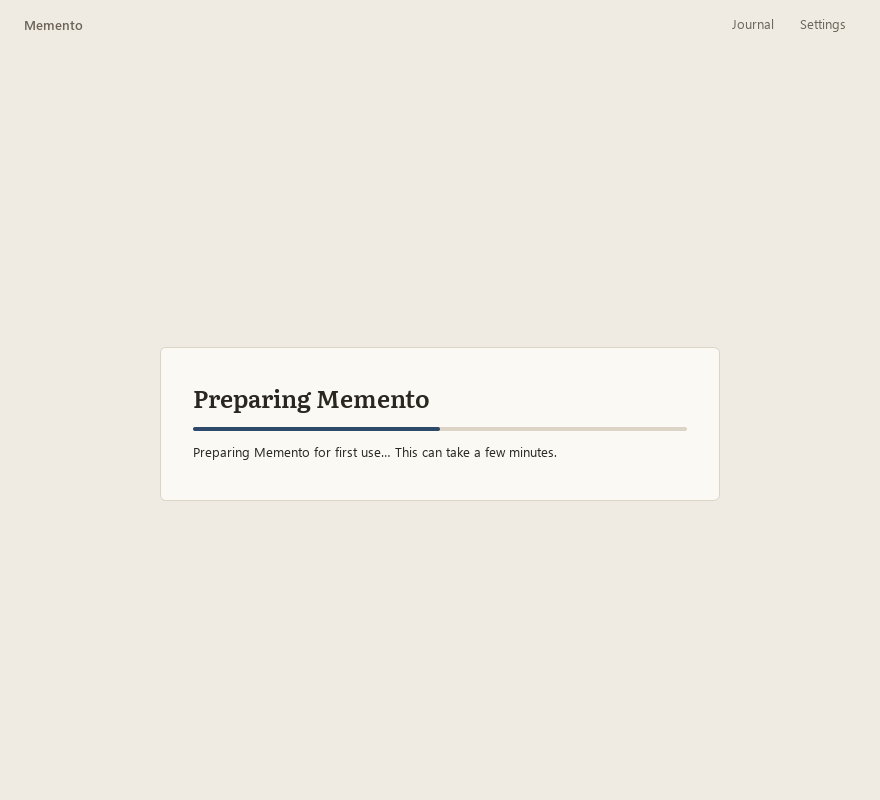
Next, Memento prepares itself for your graphics card. This takes about 2 minutes, sometimes a little longer. You only wait for this once.
Choose your journal folder
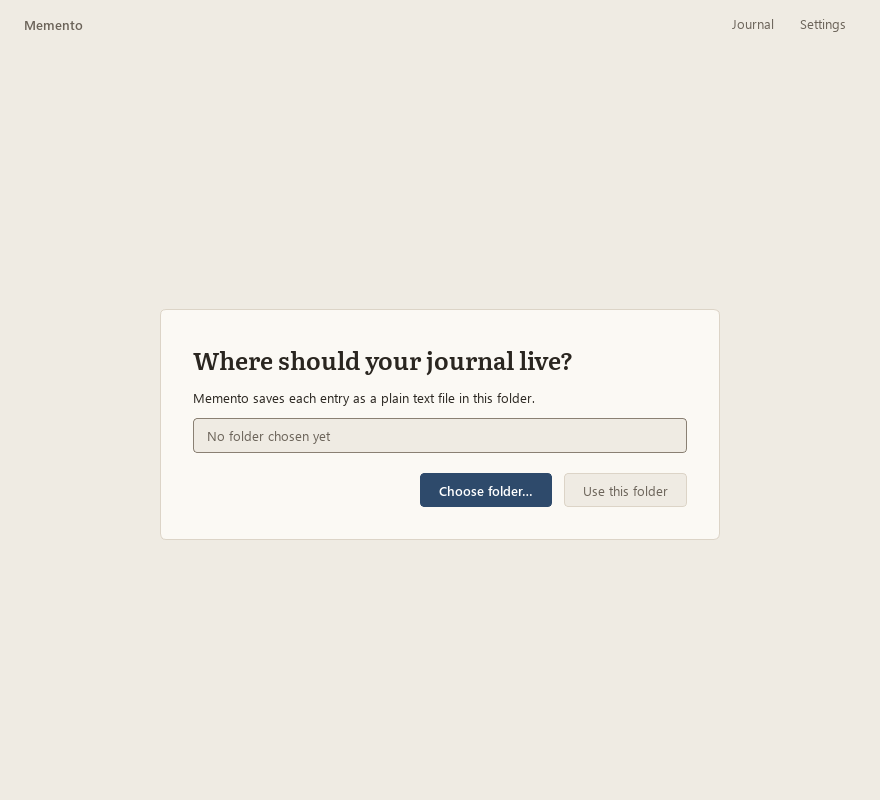
This is the folder where every entry will be kept. Pick a place you will find again, such as a new folder named Journal in your Documents.
- Click Choose folder… and pick a folder.
- Click Use this folder.
If Memento can't write to that folder, it says so and asks for another one.
To keep your journal safe, and for where not to put it, read Look after your journal.
From now on, Memento opens straight on the main screen.
Choose your languages
Memento works with two languages, and they are two separate choices.
- Memento's language (the app language) is the language of the buttons, menus and messages: English or Français. Memento starts in French if your Windows display language is French, and in English otherwise. You change it in Settings, and it applies the next time Memento starts.
- The journal language is the language you dictate in. Your live text, the cleanup, the tags and the journal's
README.mdall follow it. Each journal folder has one.
The two don't have to match: you can read Memento in French and keep an English journal.
Pick the journal language for a new folder
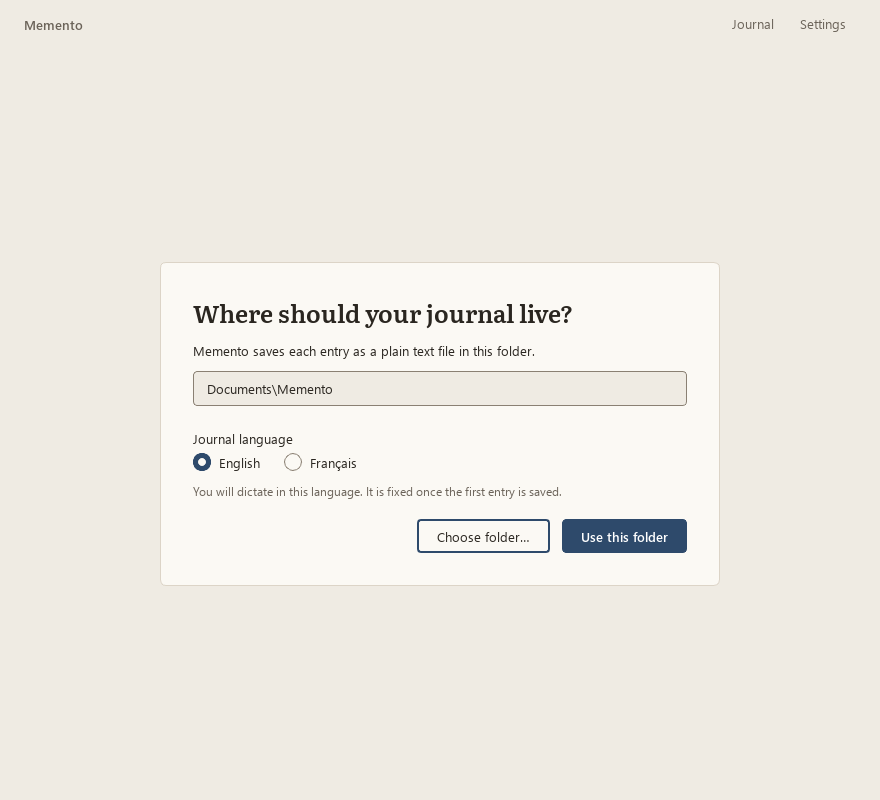
When the folder you choose holds no entry yet, the card asks for the journal language, with your Memento language ticked to begin with. Choose it before you click Use this folder.
When the folder already holds entries, there is nothing to choose: the card shows its language, for example "Journal language: French", with the note "Fixed: this folder already holds entries." A journal made with an older Memento, before 1.3.0, is an English journal.
Speak in the journal language. If you speak another language, what appears is not your words: Memento writes an automatic translation of them into the journal language, not word for word. A few words of another language inside a sentence, such as a brand or a technical term, are written as Memento hears them.
The main screen reminds you of the choice: the line at the bottom right reads, for example, "Journal: English", and a caption at the bottom of the page says "Speak English: speech in another language is automatically translated into English."
Why the language is fixed
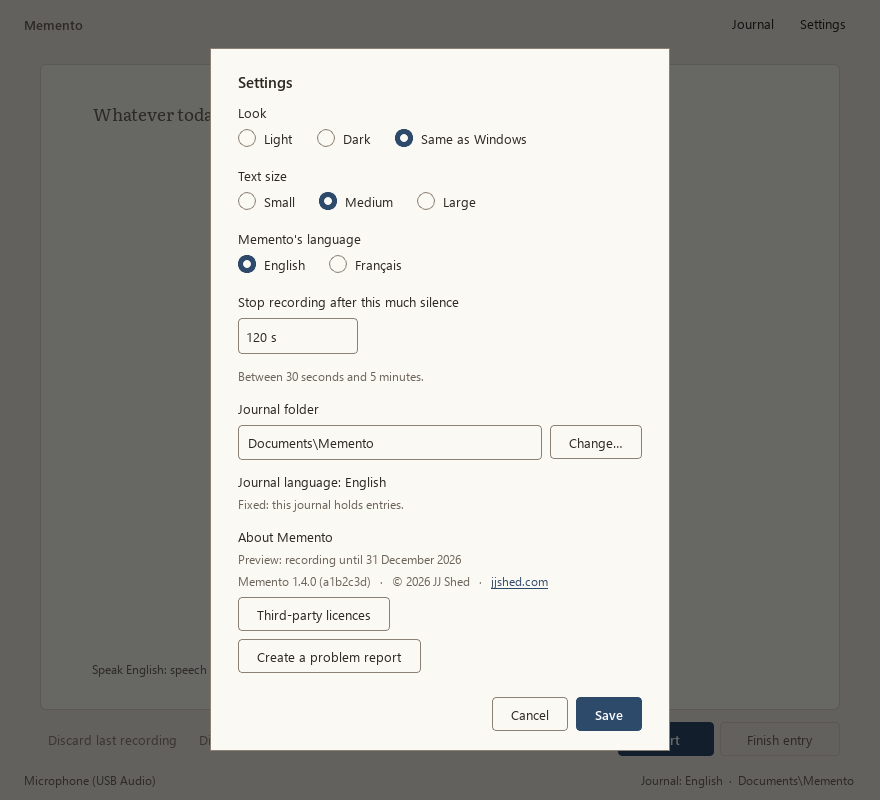
The journal language is locked once the first entry is saved: a journal keeps the one language it began with. Settings then shows the language as a plain line, with the note "Fixed: this journal holds entries."
Change a wrong journal language
If you chose the wrong journal language, there is nothing to edit by hand. In Settings, while the folder holds no entry, the journal language can still be changed.
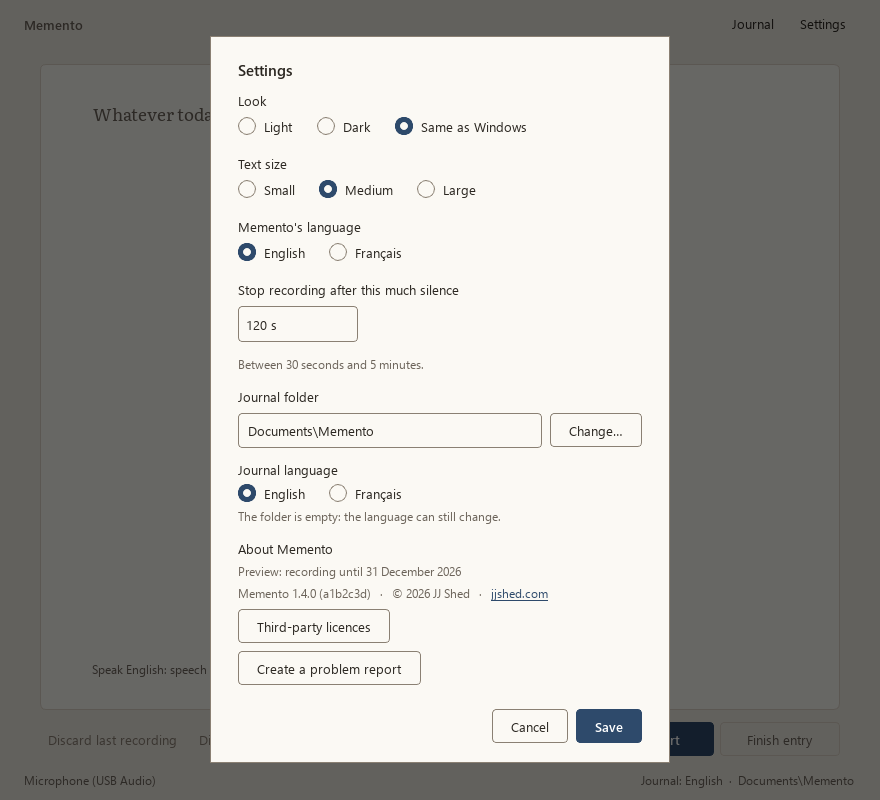
Once the folder holds an entry, its language is fixed. To keep a journal in another language, choose a new empty folder with Change… under Journal folder, and pick its language there.
While a sitting is open, the journal folder and its language can't be changed: Settings says "A sitting is open: finish or discard it to change the folder or its language."
Memento keeps the journal language in a small file, memento-journal.cfg, in the journal folder; you don't edit it: you always choose the language in Memento.
Write your first entry
Each time you sit down to speak is called a sitting. A sitting becomes one entry, however many times you stop and start.
Start speaking
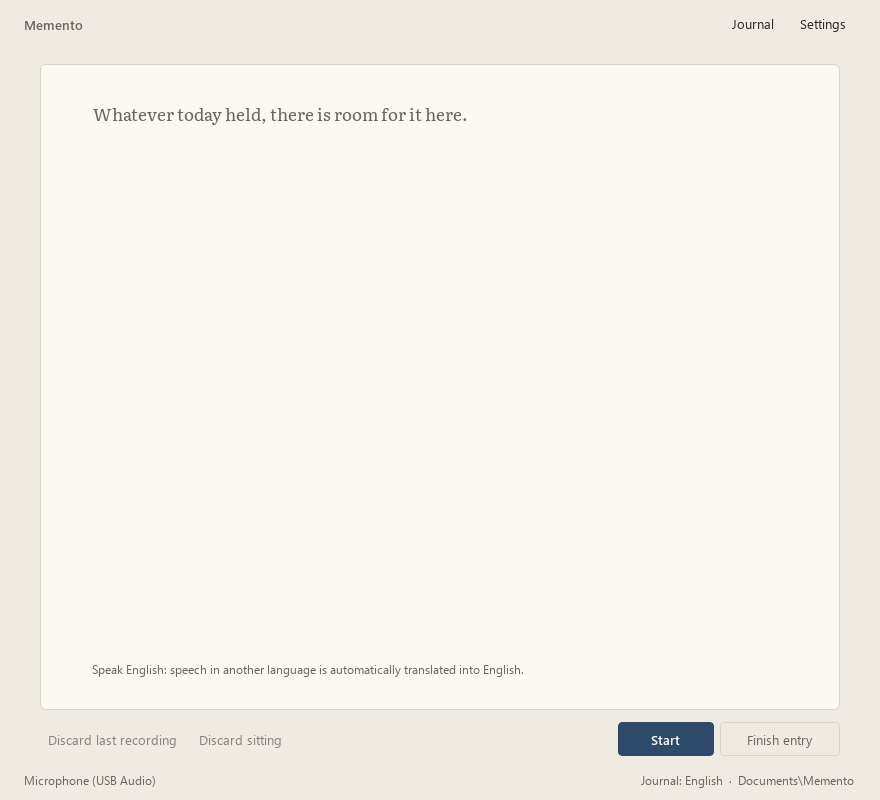
When Memento opens, it shows "Getting the speech engine ready…" for a moment. Then press Start and speak normally. You don't need to hold any key.
At the bottom of the page, a small caption reminds you which language to speak, and the line at the bottom right names the journal language, for example "Journal: English".
A red dot and a timer appear at the top. Your words appear within about 3 seconds of saying them.
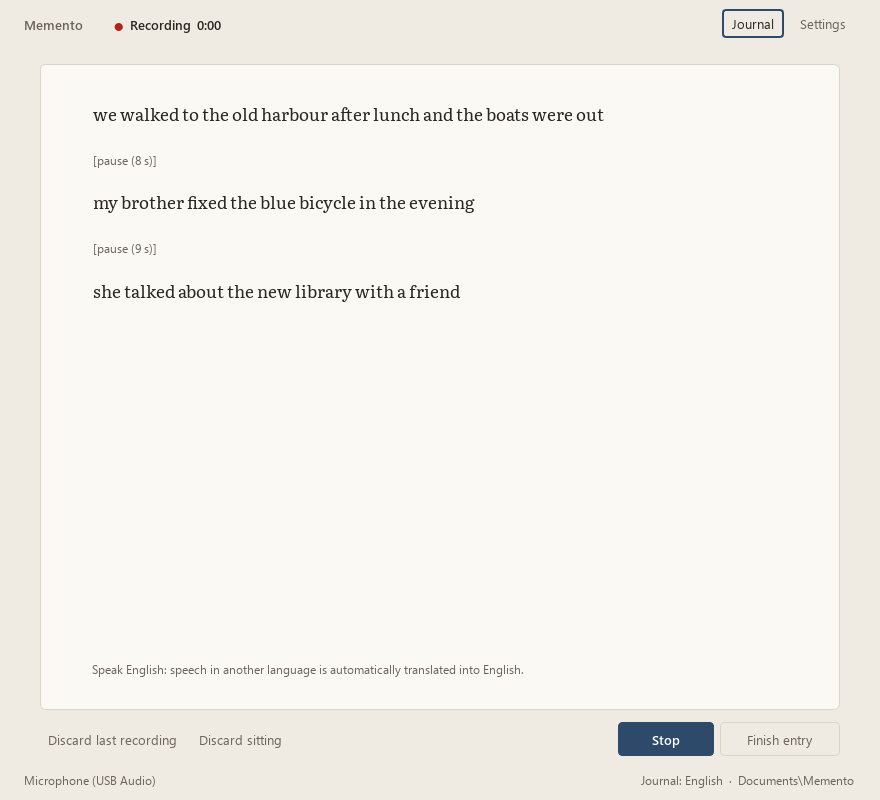
Take your time. Thinking is part of it:
- If you pause for 3 seconds, the next words start a new paragraph.
- If you pause for 6 seconds or more, Memento adds a mark such as
[pause (23 s)]. It stays in your entry, so you can later see where you stopped to think.
Stop, correct, carry on
Press Stop when you want to pause. Your text stays on the page and the sitting stays open.
- Fix a misheard word: click in the text and type. You can do this whenever the recording is stopped.
- Add more: press Start again. The new words follow the old ones in the same entry.
- Drop what you just said: press Discard last recording. Memento asks "Remove this recording?" before it does anything. Earlier recordings are not touched.
- Drop everything: press Discard sitting. Memento asks first and tells you how many recordings will go. Only recordings that caught speech are counted; if none did, it simply asks "Remove this whole sitting?". Nothing is saved.
If you go quiet
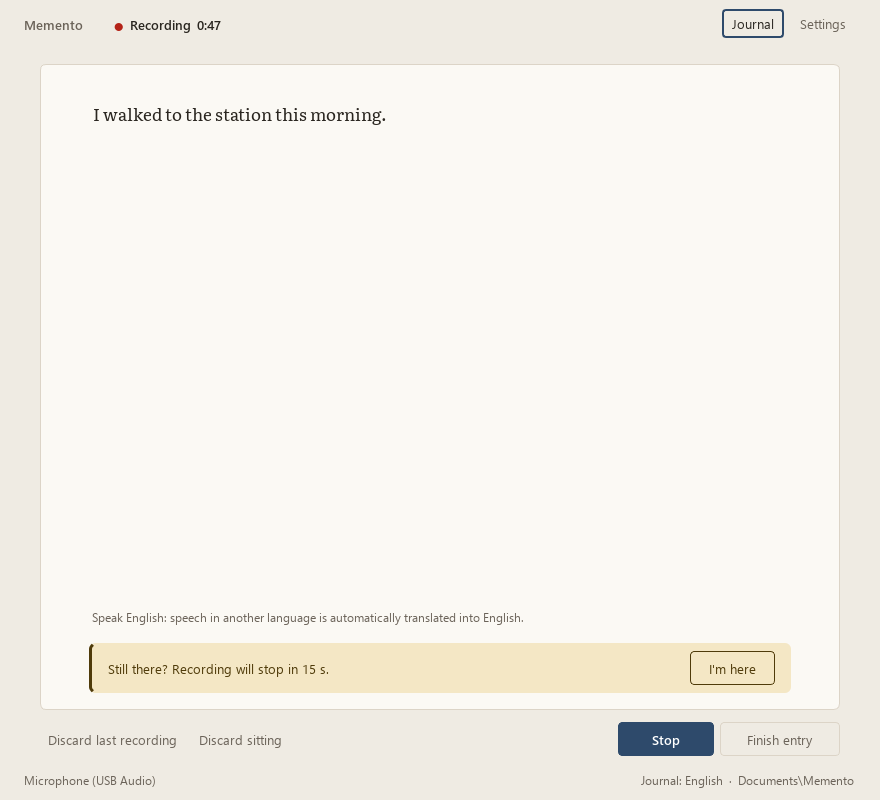
By default, a banner asks "Still there?" after 45 seconds of silence. It doesn't interrupt anything. Speak, click I'm here or press Esc, and the recording carries on.
If you stay silent, the recording stops by itself after 60 seconds. Your text is kept and the sitting stays open; press Start to continue. You can change this length: see "Change the settings" below.
Finish and save
- Press Finish entry. Memento shows "Cleaning your text…". For a 15-minute sitting this takes up to about a minute. Longer sittings take longer, and a progress bar shows how far along it is.
- Read the cleaned text. You can change anything in it by typing.
- Check the tags.
- Press Save.
That's it. Your entry is in your journal folder, and Memento is ready for a new sitting. For 4 seconds, the top of the window shows "✓ Entry saved:" with the entry's file name, for example 2026-11-08_2140.md. Then the message fades away by itself. You don't need to click anything, and you can press Start straight away.
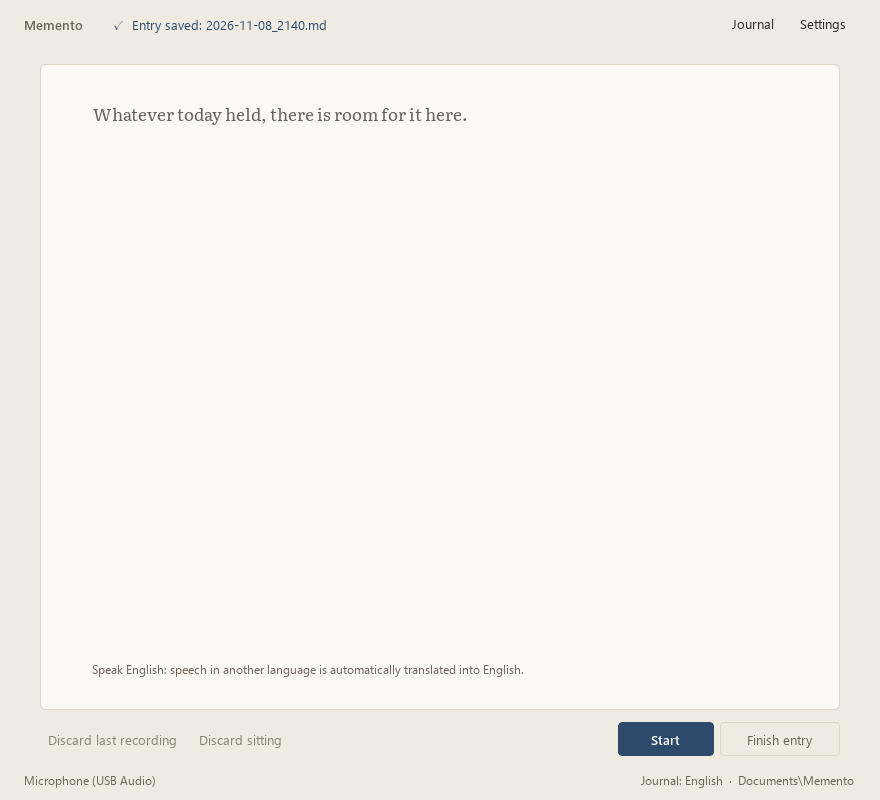
On a graphics card with little free memory, you may see "Reloading speech model…" after a sitting, and Start waits until it's done. This is normal.
Changed your mind on the review screen? Back to draft takes you back to the text as it was before the cleaning. Memento warns you first, because your changes on the review screen will be lost and Finish entry will clean the text again. Discard sitting is also there if you'd rather keep nothing.
Work from the keyboard
You can do a whole sitting without the mouse:
- Ctrl+R: start or stop recording.
- Ctrl+Enter: finish the entry; on the review screen, save it.
- Ctrl+J: open the journal.
- Esc: answer "I'm here" when the silence banner shows.
The Tab key moves from one field or button to the next. On the review screen it goes from top to bottom, in the order you see things.
Rest the mouse on a button to see its shortcut. Actions that throw text away have no shortcut on purpose.
Understand what the cleanup changes
Memento makes only small changes:
- It removes filler words ("um", "uh", "you know", "basically") and words said twice ("the the").
- It removes sentences you abandoned and restarted.
- It fixes small grammar slips, at most three words per sentence.
- It adds punctuation, capitals and paragraph breaks.
In a French journal, the cleanup is stricter still: it removes only sure fillers such as "euh" and little words said twice such as "je je", and it never adds, drops or changes any other word.
It never swaps a word for a "better" one, adds meaning, drops an idea, reorders sentences, or changes names and numbers.
Your words exactly as spoken, with your typed corrections, are also kept in a separate raw copy next to the entry. Memento doesn't show that copy, but you can open it in the journal folder.
Check text marked as not cleaned
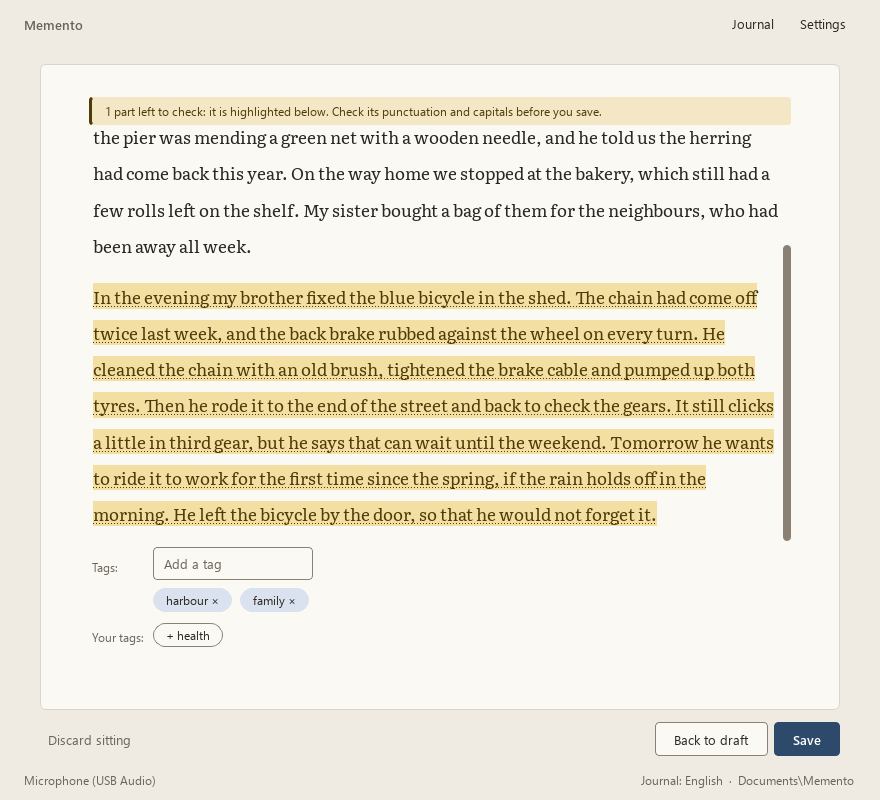
Memento checks its own cleanup. If a change to a sentence goes too far, Memento refuses it and keeps your own words for that part only. The rest of the text keeps its cleanup.
- What you see: each part that was not cleaned is highlighted in yellow. Cleaned text is not. A line at the top counts the parts left to check, for example "1 part left to check: it is highlighted below. Check its punctuation and capitals before you save."
- How big a part is: usually the refused sentence, plus any words the cleanup had dropped next to it. Sometimes Memento can't separate the sentence, and a whole paragraph is highlighted instead.
- Why it happened: rest the mouse on a highlighted part to see what kind of change was refused.
- What to do: fix the punctuation and capitals yourself if you wish, or leave it as it is.
Work through the parts one by one
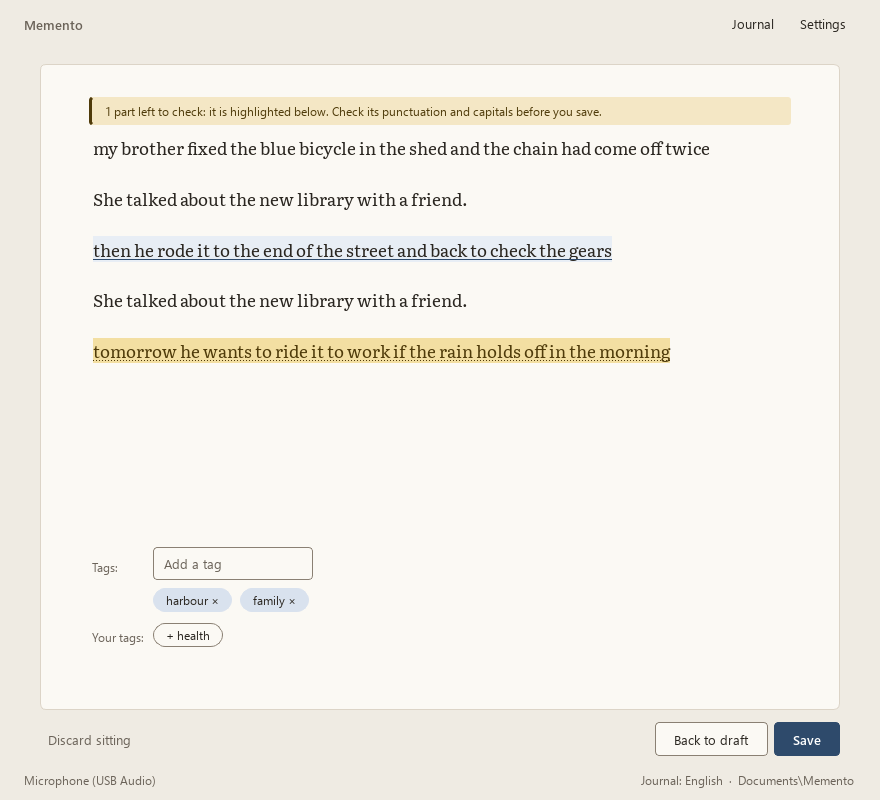
- Click in a yellow part, or move into it with the arrow keys. While the cursor is there, the part turns pale blue with a solid underline, so you can see which one you are working on.
- Fix it, or simply read it and decide it is fine.
- Move the cursor out of the part, by clicking elsewhere or with the arrow keys. The part loses its colour and now looks like the rest of the text, whether you changed it or not.
The line at the top counts only the parts still yellow, and it disappears when none is left. On a long entry, a quick look tells you what is left to check.
You don't have to check every part: you can save at any time. The colours only appear on this screen. They are never saved in your entry, and Undo (Ctrl+Z) and Redo (Ctrl+Y) only undo and redo your typing, not the colours.
If you go to the journal and come back, the parts are as you left them. If you choose Back to draft and finish the entry again, Memento cleans the text afresh and highlights the new result.
Save text when cleanup is unavailable
If the cleanup can't run, Memento says "Cleanup unavailable" and keeps your draft. Choose Retry, or choose Save raw text with my own tags. Your text then appears on the review screen, all highlighted, with no tags suggested. The line at the top says "This text was not cleaned: it is your raw words, highlighted below." Pause marks such as [pause (23 s)] are not highlighted, because they need no checking. Here the whole text stays yellow while you work on it: there are no parts to tick off one by one.
Tag your entries
A tag is a short label such as career or kids. Memento suggests between one and six for each entry, and prefers tags you already use. It offers only the tags of the journal that is open, in that journal's language.
- Remove a tag: click the × on it.
- Add a new tag: type it in Add a tag and press Enter or a comma.
- Reuse a tag: click it in the Your tags row.
Find one of your tags
The Your tags row shows your most used tags, up to 6, on a single line: as many as fit. If you have more, a line under it says how many others there are, for example "4 more; type to filter". Add a tag never moves.
To find one of the others, start typing in Add a tag. The row then shows only your tags that contain what you typed, in any part of the word: "din" finds family-dinner. A space counts as a hyphen, so "family din" finds it too. Accents don't matter: "reflexion" finds réflexion. Click the tag you want, and the field empties.
If none of your tags match, the row says "No matching tag". Press Enter or a comma and what you typed becomes a new tag.
Know how tags are written
Tags use lowercase letters (accented letters included), digits, hyphens and apostrophes. Memento converts what you type: spaces become hyphens, and other characters are dropped.
A tag keeps the spelling it was first saved with. If your journal has réflexion and you type "reflexion", the entry gets réflexion, so you never end up with two tags that differ only by an accent.
If Memento has no suggestion, it says "No tags suggested". Type your own or click one of yours.
Reread your journal
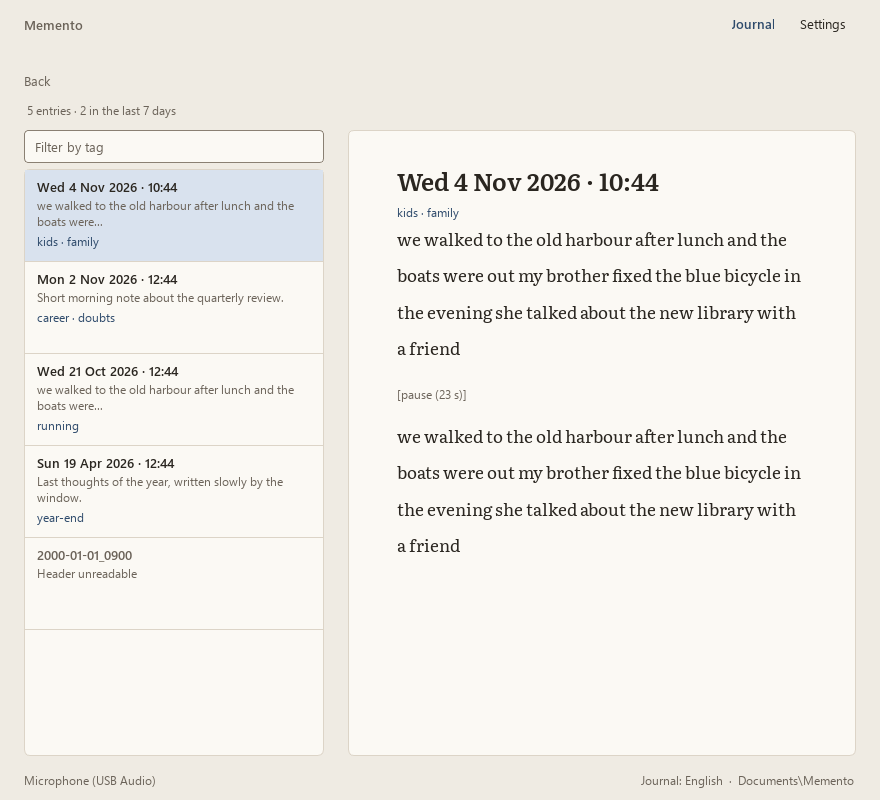
Click Journal at the top right, or press Ctrl+J.
Your entries are listed newest first, with date, time, first words and tags. A line above the list shows how many entries you have and how many you saved in the last 7 days. Click an entry to read it.
Back returns you to the main screen. During a sitting the button says Back to sitting, and your text is just as you left it. You can even open the journal while recording: the recording continues, the red dot stays visible, and the new words are there when you return.
Show only entries with a tag
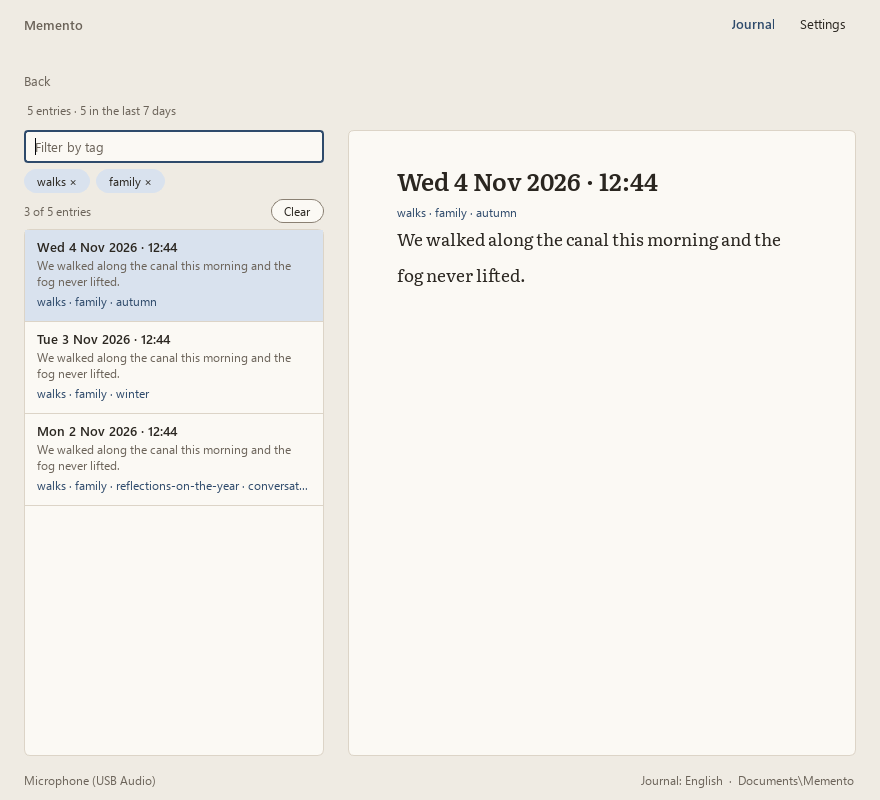
- Type part of a tag in Filter by tag, above the list. Memento suggests the tags of your journal that contain what you typed, accents or not, most used first. If none do, it says "No tag matches" over the top of the list, and the list stays where it is.
- Click a suggestion, or press Enter to take the first one. The tag becomes a chip, a small label with an × to remove it, and the list shows only the entries with that tag, newest first.
- To narrow it down, add another tag the same way. The list then shows only the entries that have all the chosen tags.
A line under the chips gives the count, for example "3 of 5 entries". If no entry has all the chosen tags together, the list says "No entries have all these tags."
- Remove one tag: click the × on its chip.
- Show everything again: click Clear.
The filter stays on when you go back to your sitting and return to the journal. It is off the next time you start Memento, and when you change the journal folder. If you save an entry while a filter is on, it shows in the list only if it has all the chosen tags.
The filter field appears once your journal has at least one entry.
Change or delete an entry
The journal view is for reading. To change or delete an entry, open or delete its file in the journal folder. Memento shows files as they are now. If someone changed the top lines of a file and Memento can't read them, the entry is listed by its file name with the note "Header unreadable".
Change the settings
Click Settings at the top right.
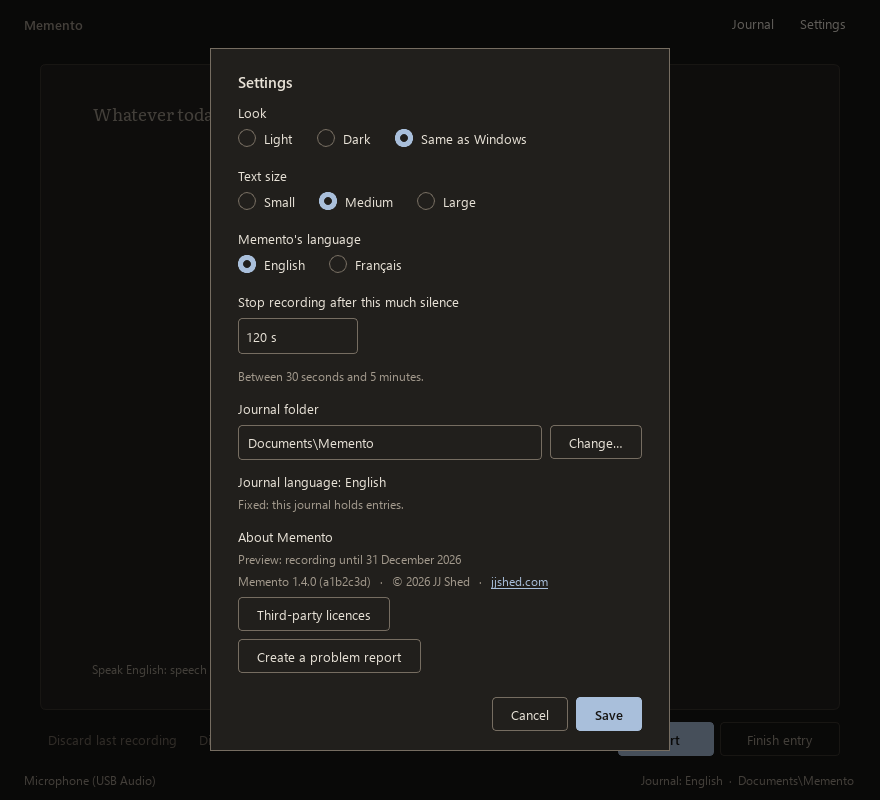
- Look: Light, Dark, or Same as Windows, the choice when you first start Memento. Same as Windows follows the light or dark mode you chose in Windows for your apps, and changes with it.
- Text size: Small, Medium (the usual size) or Large. It changes the size of your own words: the draft, the text on the review screen and the entry you read in the journal. Buttons, lists and messages keep their size.
- Memento's language: English or Français, the language of every screen. A note says that Memento will switch the next time it starts.
- Stop recording after this much silence: anything from 30 seconds to 5 minutes. The new length applies from your next recording. The "Still there?" banner always comes 15 seconds before the end.
- Journal folder: click Change… to use another folder. The folder chooser opens in your current journal folder. Memento warns you first: entries already in the old folder stay there and won't be listed, unless you move them yourself. A long folder path is shortened in the middle; rest the mouse on it to see it whole.
- Journal language: the language you dictate in. You can pick it only while the journal folder holds no entry; after that Settings shows it as fixed. See Choose your languages.
- About Memento: the date until which this preview records (see Know until when Memento records), then your Memento version with a short code for the exact build, for example "Memento 1.4.0 (a1b2c3d)", the maker, "© 2026 JJ Shed", and a link to jjshed.com.
- Third-party licences: Memento is built with free components made by others. This button opens the page that lists them and their licences, from your PC, without the internet. The page also links to the folder with the full licence texts. If Memento says the file can't be found, run the setup again.
- Create a problem report: makes a small file to send when you need help. See Report a problem.
Try a look or text size before keeping it
As soon as you click a look or a text size, the Memento window behind Settings changes, so you can see the result at once. Click Save to keep it, or Cancel (or press Esc) to go back to how it was. Your choice is kept the next time you start Memento. It never changes your entries: they stay plain text.
The title bar at the very top of the window, with the minimise and close buttons, follows the look too, whatever mode Windows is in.
Choose your microphone
Memento uses the microphone that Windows has set as its default. The small line at the bottom of the main screen shows that microphone's name and your journal folder. To use another microphone, change the default in the Windows sound settings.
Resize the window
The first time, Memento opens in a tall window in the middle of the screen. Make it the size you like, or maximise it: Memento opens the same way next time. If the window would not fit on your screen, Memento makes it smaller so that it is fully visible.
Get your words back after a crash
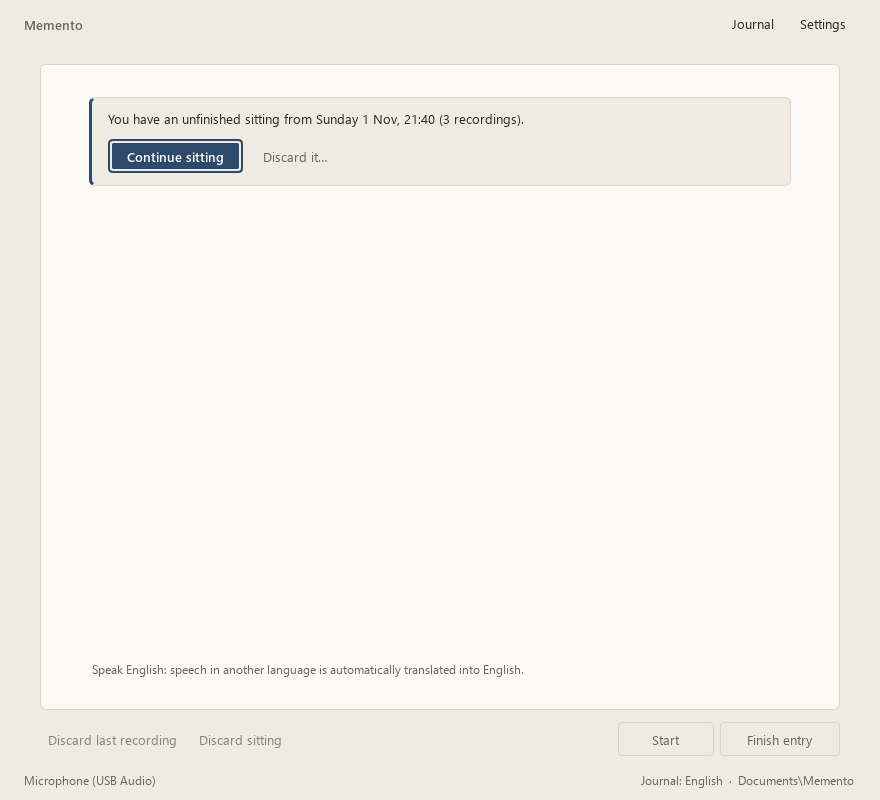
Memento keeps your open sitting safe as you go. If Memento crashes, the PC loses power, or you simply close the window, nothing is asked and your draft stays on your PC.
The next time you open Memento, it offers the sitting back:
- Continue sitting returns you to your text as it was. After a crash, at most the last 10 seconds of speech may be missing.
- Discard it… deletes the draft, but only after you confirm.
Memento asks you to choose before you start a new sitting.
If Memento can't read the unfinished sitting's file, or another program is holding it, the message says so and shows where the file is.
Know what stays private
After the first download, Memento works with no internet connection at all. It makes no connection when it starts or during a sitting. You can unplug the network and everything keeps working.
- Your voice is never stored. Speech is turned into text on your PC, and the sound is not written to disk, not even for a moment.
- Your journal is not sent anywhere. No statistics, no tracking, no account.
- The first download only fetches public files. Hugging Face and GitHub see your internet address, as with any download. The same applies if you later press Download missing files.
- Nothing else leaves your PC. Memento sends no journal, no draft and no log file.
- Memento's own logs hold no journal text.
- A problem report is sent only if you send it yourself. It holds technical facts, never journal text: see Report a problem.
- If Memento crashes, Windows may keep a memory dump of it on your PC, and that dump can contain journal text. Depending on your Windows diagnostic settings, Windows may send crash data to Microsoft.
Find your files
Your journal folder holds everything you wrote:
- Entries: one file per entry, in a folder for each year, for example
2026/2026-10-29_2140.md. The name is the date and time the sitting started. Open it with any text editor. The top lines give the date, the language and the tags, then comes the text. - Raw copies: the same names in the
rawfolder, ending in.raw.md. README.md: a short explanation of the folder, written once by Memento, in the journal language, when you save the first entry.memento-journal.cfg: the journal language. Memento manages this file; don't edit it.
To keep these files safe, see Look after your journal. Memento itself never deletes or overwrites a saved entry.
Memento's other files are in these places. To open one, paste it into the address bar of File Explorer and press Enter.
- Settings:
%APPDATA%\Memento - Unfinished sitting, logs and problem report:
%LOCALAPPDATA%\Memento - Models:
%LOCALAPPDATA%\Memento\runtime(about 5 GB) - The program:
%LOCALAPPDATA%\Programs\Memento, with the third-party licence texts in itsLICENSESfolder
Move to a new PC
Your journal is a folder of ordinary files, so it moves like any other folder.
- Copy your journal folder from the old PC to a USB key or another disk.
- Install Memento on the new PC, as in Install Memento. It downloads its models again, about 5.1 GB. This works only until 31 December 2026: after that, the preview downloads nothing.
- Copy the journal folder onto the new PC, for example into your Documents.
- When Memento asks where your journal should live, click Choose folder…, pick that folder and click Use this folder. Your entries are listed, and the journal keeps its language.
Your look, text size and other settings stay on the old PC: choose them again in Settings.
Update Memento
- Get the new
Memento-Setup-<version>.exe. - Close Memento. If it is still open, the setup says so and waits. It never closes Memento for you, so an entry being saved always finishes.
- Double-click the setup and follow it. Windows may again show Windows protected your PC: click More info, then Run anyway. Setup shows the licence agreement again; accept it to go on. It installs into the same folder as before, without asking.
- Start Memento. Settings shows the new version under About Memento.
After an update from version 1.1.0 or earlier, the look is Same as Windows and the text size Medium, so Memento looks as it did before. After an update from 1.2.0, your journal stays an English journal and nothing is asked; Memento's screens follow your Windows display language until you choose one in Settings. Your journal, settings, unfinished sitting and models are all kept. Program files that the new version no longer needs are removed. Memento doesn't update itself.
To go back to an older version, run the older setup over the newer one.
Uninstall Memento
Open Windows Settings, then Apps, click Memento, and choose Uninstall. Close Memento first.
Only the program and its shortcuts are removed, and no empty program folder is left behind. Your journal, settings, models, unfinished sitting and logs stay on your PC. The last page says where. To free the 5 GB of models, or to remove every trace, delete those folders yourself. "Find your files" above lists them.
Report a problem
If something goes wrong and you want help, a problem report gives the people who make Memento what they need to understand it, and nothing personal. You don't need any technical knowledge.
- Open Settings and click Create a problem report.
- Memento writes a small file of technical facts, nothing you wrote or said, and shows you where it is: File Explorer opens with the file selected. Its name holds the date and time, for example
Memento-ProblemReport - 2026-11-19 14h05.txt. - Double-click it to open it in Notepad and read it. At the bottom, under "What happened", write in your own words what you did, what you expected and what you saw, then save the file. This part helps the most.
- Send this file through the contact page on jjshed.com.
What is in it (written in English, whatever Memento's language): your Memento version and build; your Windows version and display language; Memento's language and the journal language; your graphics card, its memory and its driver; whether Memento's models are all there; the step that failed, if any; whether Memento's previous run ended normally, with a short technical trace after a crash; and the last 40 lines of Memento's log, which records technical events only.
What is never in it: your journal text, anything you said, your journal folder's location or its file names, your microphone's name, and your Windows user name.
Memento never sends the report itself. It leaves your PC only if you send it. Older reports stay in %LOCALAPPDATA%\Memento; you can delete them. If the report can't be written, for example because the disk is full, Settings says so; try again later.
Fix common problems
Memento says "Memento is already open."
Memento can only run once at a time. Your open copy and your text are safe. Look for its window on the taskbar.
Memento says your card or driver isn't good enough
The message names what your PC has and what Memento needs. If it is the driver, update it from nvidia.com/drivers, then start Memento again. If it is the card, recording isn't possible on this PC. You can still read your journal.
The download fails
- "Couldn't reach…": check your internet connection, then click Retry.
- "Not enough free space": free up the amount shown on that drive, then restart Memento.
- A file is damaged: Memento fetches a bad file again by itself. If it is still damaged, click Retry.
The part already downloaded is kept.
Memento says files are missing or damaged
Click Download missing files. Only those files are fetched, and Memento shows their size on the button.
Memento can't load its models
Memento checks its own files, your card and your driver, and shows "Checking why…". If files are missing, it offers to download them.
Otherwise, it writes a small file named Memento-ProblemReport - yyyy-MM-dd HHhmm.txt (the date and time it was made, for example Memento-ProblemReport - 2026-11-19 14h05.txt). Press Open folder to see it, and include that file when you ask for help. The file holds technical facts only: Memento and Windows versions, Memento's language and the journal language, your graphics card and driver, the step that failed, and timings. It holds nothing you wrote or said. Your journal stays readable in the journal view.
Close Memento and open it again. Check that your NVIDIA driver is up to date.
Memento doesn't hear you
- "No microphone was found": plug one in, or check the Windows sound settings, then press Start again.
- "Windows is blocking the microphone": in Windows Settings, open the Privacy section, then Microphone, and allow desktop apps. Press Start again.
- The microphone was unplugged during a recording: your text so far is kept. Plug it back in and press Start.
- Wrong microphone: check the name in the line at the bottom of the main screen, then change the default in the Windows sound settings.
Memento can't use the journal's language
Recording is off, but the journal view keeps working, so you can still read your entries.
- "Memento can't read this journal's language": the file that holds the journal language is damaged. Click Open Settings and choose the journal language again. Memento rewrites the file, even if the journal already holds entries, and recording works again. The line at the bottom right reads "Journal: language unknown" until you do.
- "This journal is in a language this version of Memento can't record in": the journal was set to a language this version doesn't support; the message gives its code, such as
de. You can read the journal, but not record in it. Choose another journal folder in Settings to record.
An entry won't save
Memento tells you why: the folder is missing, you don't have permission to write there, or the disk is full. Your entry is kept on screen. Fix the problem and choose Retry, or choose Choose another folder.
Memento shows "Nothing to save yet"
The sitting has no text yet. Say or type something first. If a recording only caught noise, no text is added.
Memento shows an unexpected problem
Your text so far is kept. If anything looks wrong, close Memento and open it again, and the sitting will be offered back.